 by
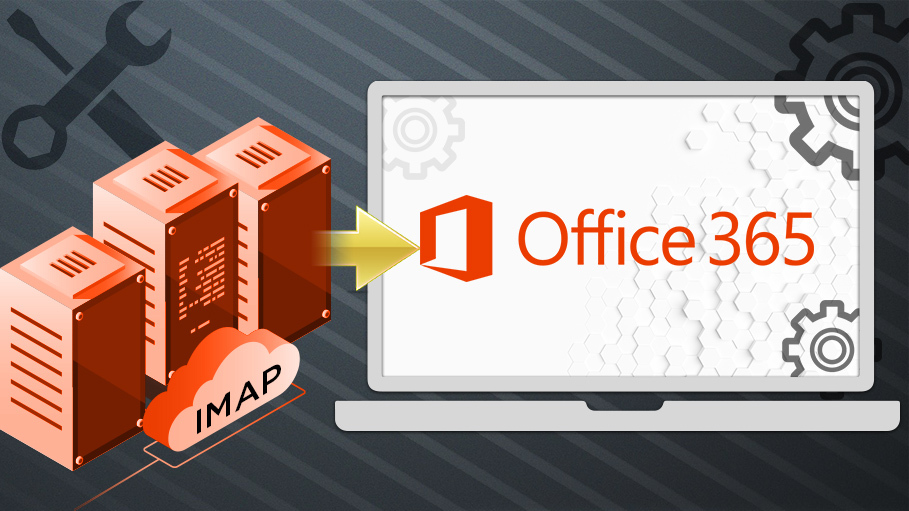
by Users who transfer their emails from IMAP to Office 365 face issues like email synchronisation or total data loss during the migration. Also, a lot of users experience problems with the settings of their accounts and the configuration of the servers. Since Office 365 provides enhanced security and updated features, the migration process should be conducted carefully. In this technical blog, we will discuss the process of migrating IMAP to Office 365. Also, we will address common problems and ensure that the migration is smooth and easy.

Contents
- 1 Benefits of IMAP to Microsoft 365 Migration
- 2 Manual Approach for IMAP Migration to Office 365
- 2.1 Step 01: Prerequisites Required for Office 365 Migration
- 2.2 Step 02: Gather IMAP Server Details
- 2.3 Step 03: Create a CSV File for IMAP to O365 Migration
- 2.4 Step 04: Create an IMAP Migration Endpoint
- 2.5 Step 05: Create and Start an IMAP Migration Batch
- 2.6 Step 06: Monitor the Migration Process
- 2.7 Step 07. Update DNS and MX Records
- 2.8 Step 08: Complete The Process Of Migration and Cleanup
- 3 Professional Approach to Migrate IMAP to Office 365
- 4 Conclusion
Benefits of IMAP to Microsoft 365 Migration
When users migrate from IMAP to Microsoft 365, they get a more secure and reliable email platform. Below are some of the benefits of the process of migration:
- Users will get better email security and protection from spam.
- Also, you will get larger mailbox storage for emails and attachments.
- There will be easy access to emails on multiple devices
- Users will notice seamless integration with Outlook and other Microsoft apps.
- Users will get improved email performance and uptime
Pro Tip: Before you begin the migration process, make a complete backup of your IMAP mailbox to avoid data loss.
Manual Approach for IMAP Migration to Office 365
Basically, using a manual approach, users can move your emails from their IMAP account to Office 365 using built-in tools. Moreover, this method is useful for those who have less mailbox data.
Step 01: Prerequisites Required for Office 365 Migration
Before starting the process of migration, confirm that the following conditions are met:
- Ensure that all users have active Office 365 mailboxes.
- There should be proper licences assigned to each user mailbox.
- To create a migration, you must have administrator access to Office 365.
- Also, make sure your internet connection is stable for a smooth transfer.
- Along with that, check that all your mailboxes are
Step 02: Gather IMAP Server Details
Before you start the email migration, you need to collect all the necessary information, which is given below. This will ensure a smooth connection with Office 365.
- You have to note down the IMAP server hostname (e.g., imap.yourdomain.com).
- Finally, it is to be confirmed that the IMAP port number is usually 993 in the case of SSL connections.
- Next, you need to verify the security settings for a secure connection and ensure that SSL/TLS is turned on.
- Before proceeding with the migration of any IMAP accounts, it is a prerequisite to have the login credentials (email address and password).
- At this point, the IMAP connection needs to be tested to check if it is working fine before the migration starts.
Step 03: Create a CSV File for IMAP to O365 Migration
During the process of migration, users should have a CSV file. It is required to map IMAP mailboxes with their corresponding Office 365 accounts. Now, follow the given instructions:
- In this step, open a text editor or spreadsheet application and create a new CSV file.
- After this, enter your Office 365 email address, IMAP email address, and password for each user.
- For IMAP migration, users should ensure that the format matches Microsoft’s required structure.
- Then, without any extra spaces or headers, you have to save the file in CSV format.
- Now, you are required to review the file carefully to avoid errors during migration.
Step 04: Create an IMAP Migration Endpoint
The migration endpoint helps Office 365 to connect to the original IMAP server and move emails without interruption.
- Firstly, use the administrator’s credentials to log in to the Microsoft 365 Admin Center.
- Then, you have to open the Exchange Admin Center and go to the Migration option.
- Next, select the migration endpoints >> New to create a new endpoint.
- After that, select IMAP as the migration type.
- Then, provide the name and port of the IMAP server.
- Next, check whether the provided details are correct, then click Save the endpoint.
Step 05: Create and Start an IMAP Migration Batch
Now, we will transfer multiple emails from the IMAP server to Office 365 mailboxes. Follow the steps below for the same.
- Go to Exchange Admin Center >> click on Migration >> click on the New Migration.
- After that, select IMAP as the desired migration type.
- Then, provide the previously created CSV file.
- After that, select the previously configured IMAP migration endpoint.
- Adjust the settings and click on to start the migration.
- Now, wait for the email to transfer from your IMAP account to Office 365.
Step 06: Monitor the Migration Process
Follow these given steps to monitor the process:
- In addition, under the Exchange Admin Center, find the Migration section.
- Now, for the active migration batch, check the status.
- Also, recheck if there is any error or warning message.
- Along with that, make sure that Office 365 frequently receives all emails.
Step 07. Update DNS and MX Records
After the migration is complete, you need to route new incoming emails to Office 365 to avoid email delivery issues.
- Besides that, you have to log in to your domain hosting or DNS provider account.
- Next, you need to locate the MX records for your domain.
- After that, you have to replace all your existing MX records with Microsoft 365 MX values.
- Further, you have to save the changes and then allow time for DNS propagation.
- Apart from that, test the flow of email to make sure that the new email is delivered to Office 365 mailboxes.
Step 08: Complete The Process Of Migration and Cleanup
Afterward, once all emails have moved successfully.
- Then, you have to verify that all your emails are accessible in Office 365 mailboxes.
- Subsequently, stop and remove the completed migration in batch from the Exchange Admin Center.
- Next, inform the users to log in to Office 365 and begin using their new mailboxes.
- Additionally, monitor email flow for a short period of time to ensure that everything is working properly.
- Finally, retain a backup of the old IMAP data for safety, if necessary.
Professional Approach to Migrate IMAP to Office 365
With the help of a reliable tool, you can transfer emails from IMAP to Office 365 securely and without any difficulties. So take help from Aryson IMAP Backup Tool to transfer emails from any IMAP server to Office 365 and keep your data and folder structure secure. Because it works with all major IMAP services. So, you can migrate multiple accounts at once, and this simplifies the process. Now, we will discuss the process of migration with a professional approach:
- Download and launch the Aryson IMAP Backup Tool on your system.
- Select either Single Mode or Batch Mode, enter your credentials, and click Login.
- Now, verify the data from the tree structure and click on the Next button.
- Select Office 365 as your email client and click Next.
- Select either Modern Authentication or Microsoft Azure AD, enter your credentials, and click Next.
- Enter the Office 365 ID, click Login, select mailboxes, and click Next.
- Choose the Office 365 Mailbox, Archive Mailbox, or Public Folder, then click Next.
- Apply filters and click on the Next button to migrate IMAP email to Office 365.
Conclusion
In this blog, we covered the easy and simple process to migrate IMAP to Office 365. We discussed that in the process of migration, users require careful planning to avoid common issues like data loss or sync errors. By choosing the right solution, users can migrate the files smoothly and continue email communication without any interruption.
Frequently Asked Questions
Q.1. How do I migrate my email to Microsoft 365?
Ans: You can easily migrate your email to Microsoft 365 by using the Aryson IMAP Backup Tool for a faster and easier process. This tool also provides a demo version to migrate the 50 emails.
Q.2. Can I migrate IMAP to Office 365 without losing emails?
Ans: Yes, you can migrate IMAP to Office 365 without email loss if the steps are followed correctly and a proper backup is taken before migration.
Q.3. Do I need technical skills to migrate IMAP to Office 365?
Ans: You need to have basic technical knowledge for manual migration, but professional tools simplify the process and can be used without advanced technical skills.